
Do you like Wishbob?
Help us make Wishbob even better!
Rate nowAdd gift items to your wish list with just one click using the share function.
Step 1:
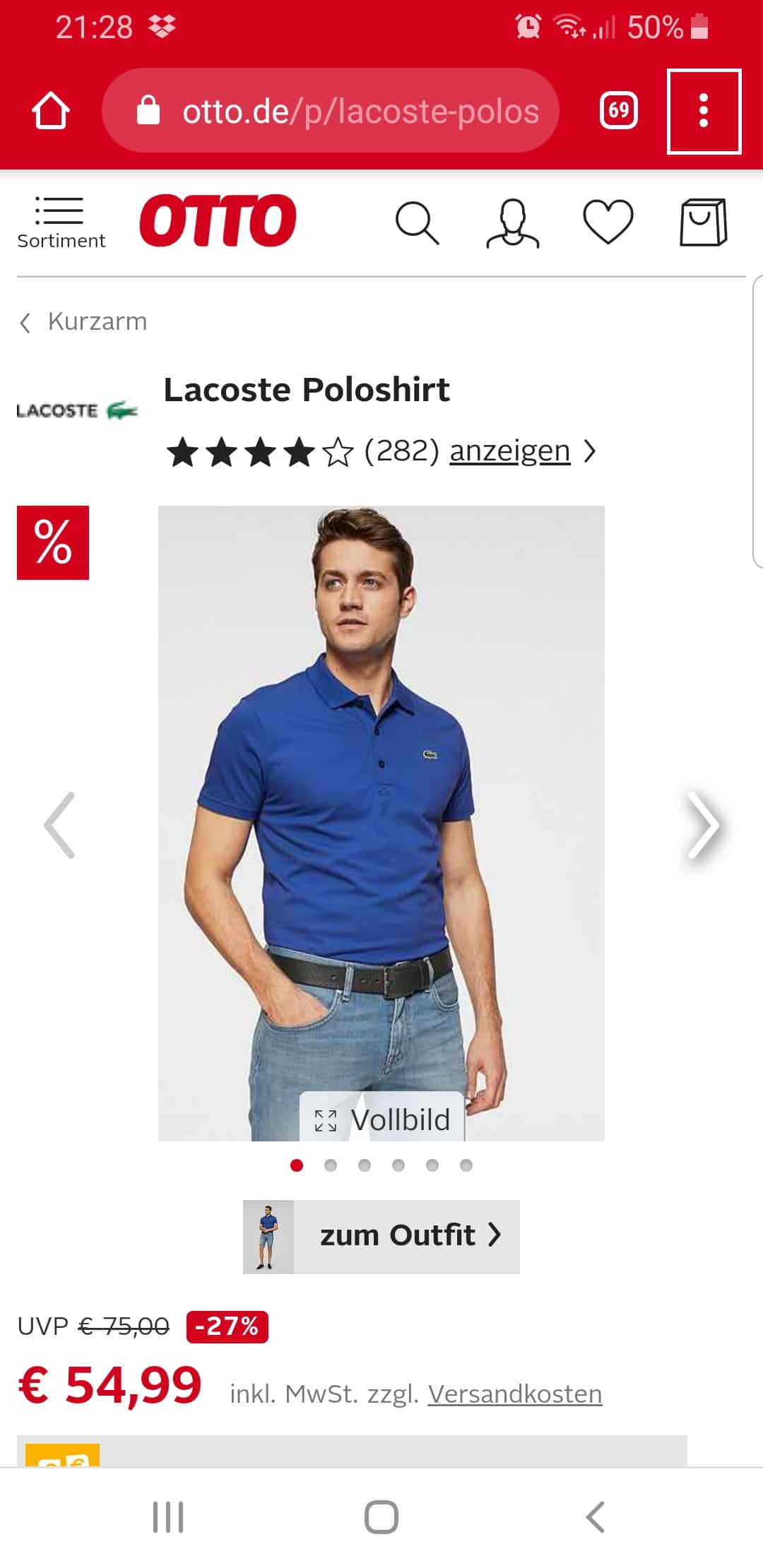
Click on the menu of your browser (the three dots in the upper right corner).
Step 2:
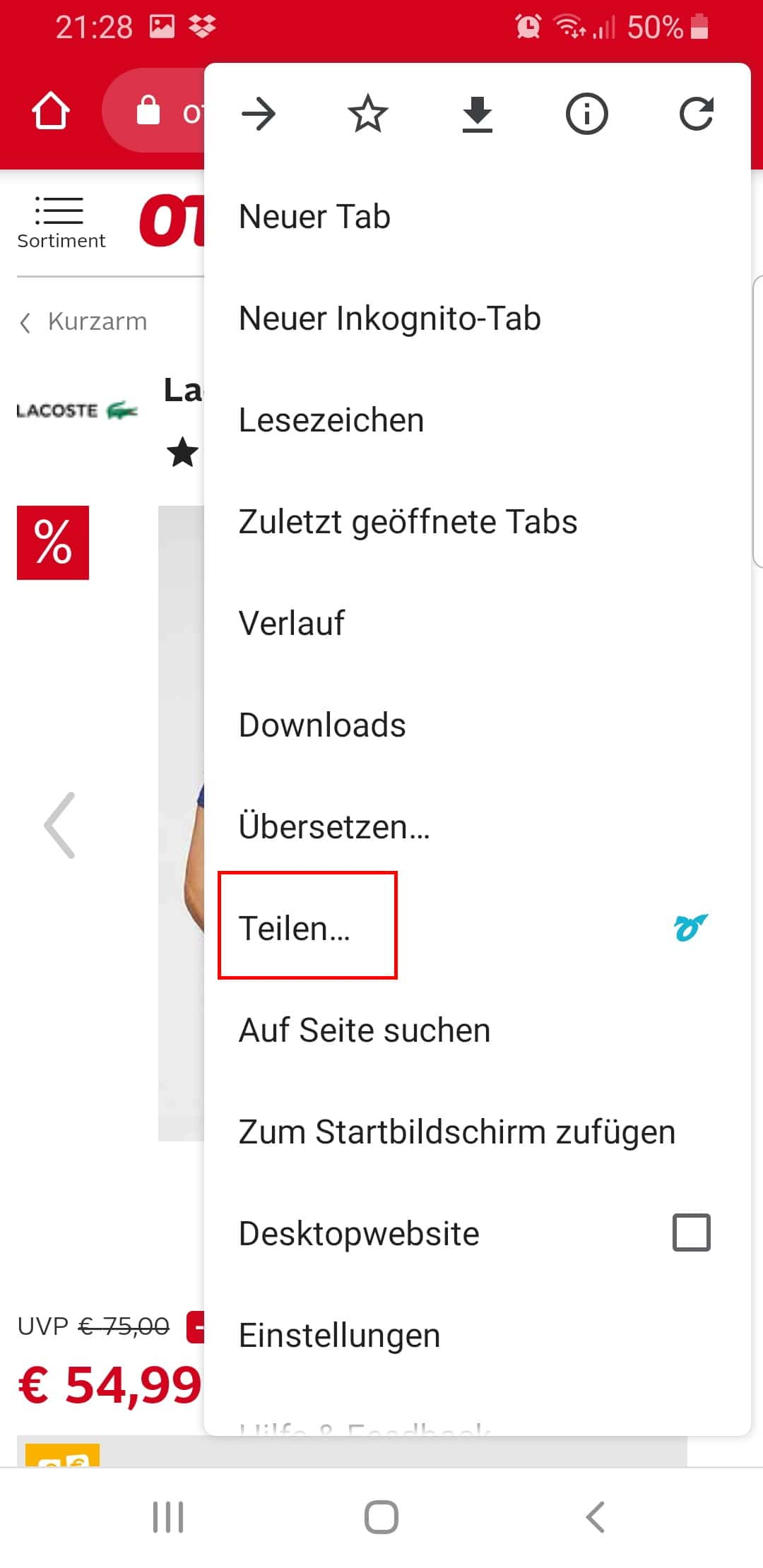
Click "Share...".
Step 3:
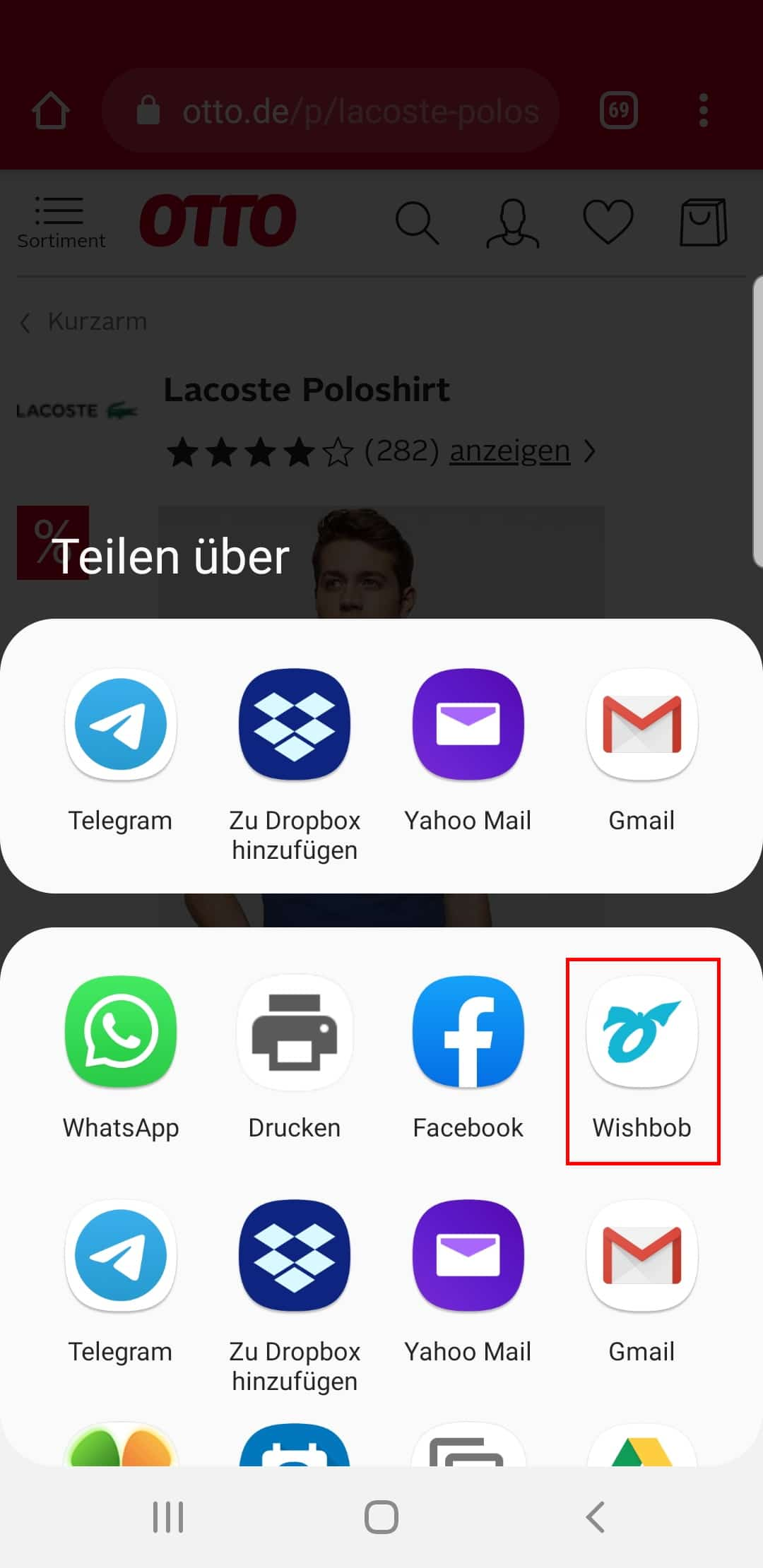
Select the Wishbob app.
This function is available in all stores and browsers.
With the Wishbob browser extension you can easily add wishes to your wish list from any online store with just one click.
Install the extension for your browser now!
It seems that you are using the following browser:
Our extension is available for the following browsers:


Wishbob is a free online wish list where you can collect, organize and share your wishes and gift ideas from any shop with family, friends or acquaintances – so no one buys duplicate gifts. It's perfect for Christmas, birthdays, weddings, baby showers or as a personal shopping list.
Wishbob combines features that are rarely available together in other apps: no registration required, native apps for Android, iOS and Huawei, store-independent, compatible with any online shop, free of charge with no hidden fees, GDPR-compliant on EU servers, available in six languages. Wish lists can be shared, and guests reserve individual wishes without signing in. On the App Store in the UK and the US, Wishbob has 4.7 stars, and there are over 4,300 reviews on Google Play and the App Store worldwide (as of October 2026).
Yes, Wishbob is free of charge for you and everyone you share your list with. You can create as many wish lists as you like and reuse them at any time. To unlock the full feature set – such as managing multiple lists – free of charge, confirm your e-mail address under „My Wishbob“ in the „Wish list overview“ or sign in there via Social Login.
No, you can instantly create a wish list with your e-mail address and without registering – no password required. All basic features are available right away. To unlock the full free feature set, confirm your e-mail address under „My Wishbob“ in the „Wish list overview“ or sign in there via Social Login – without providing any further details.
You unlock all of Wishbob's free additional features by confirming your e-mail address under „My Wishbob“ in the „Wish list overview“ or signing in there via Social Login (Google, Facebook, Amazon, Apple). This lets you manage multiple wish lists, move wishes between lists and follow friends' wish lists. Without e-mail confirmation or Social Login, these features are not available for technical reasons.
Yes – with Social Login (Google, Facebook, Amazon or Apple), if your Social Login uses the same e-mail address as your wish list. You can create your wish list directly with it or sign in later.
On your PC, sign in under „My Wishbob“ in the „Wish list overview“. In the app, open „My Wishbob“ via the user icon in the top right or via „My Wishbob“ in the bottom left. Alternatively, you can sign in via Google One Tap.
You can use Wishbob directly in the browser on your PC, laptop, smartphone and tablet – no installation required. Wishbob is also available as an app for Android, iOS and Huawei.
Yes, Wishbob's online wish list is also available as an app – for Android, iOS and Huawei. The app is currently offered in 19 countries and supports six languages: German, English, Italian, French, Dutch and Spanish.
For Android smartphone and tablet:

For iPhone and iPad:

For Huawei smartphone and tablet:

Behind Wishbob is a team from Vienna: Richard Schermann (Project Management), Caner Tankir (Technology) and Angelika Unterholzner (Content & Brand). They brought Wishbob to life in 2018 and have been developing the wish list from the same location ever since. More about the team and their mission.
Wishbob is funded via affiliate links. If a purchase is made via one of these links, Wishbob receives a commission. This does not result in any additional costs for users – and it allows Wishbob to offer the service completely free of charge.
You create your wish list by providing an e-mail address.
You can create wish lists for any occasion (e.g. kids' birthday, birthday, wedding, Christmas, baby shower, Easter, first day of school, baptism, confirmation, graduation, housewarming or anniversary). If the occasion you want is not available, you can use „Other“ to create a wish list for any event.
Yes, you can personalize the design of your wish list.
In the occasion text, you can make the recipients of your wish list smile with a few personal words or give them something to think about. You can also simply thank them, for example for their friendship or for welcoming your new-born child into the world. If you don't have enough time to write your own text, Wishbob lets you choose from several templates.
Yes, you can collect all kinds of gifts on your wish list – whether from online shops, local stores or your own wish ideas. Wishbob is store-independent and universally usable.
Yes, there are several options – depending on your device.
On your PC or laptop: Wishbob Button or Wishbob browser extension .
On your phone or tablet: via the Share function of your browser or the Shop Browser in the Wishbob App (Android, iOS, Huawei).
The Shop Browser offers a selection of shops; you cannot add your own shops there. On your phone, you add items from other shops via the Share function of your browser.
The Wishbob Button automatically adds items from any online shop – including all details (name, price, image) – to your wish list. Drag it once into your browser's favorites bar. After that, one click on the Wishbob Button in any shop is all it takes.
Installing the Wishbob browser extension (Chrome or Firefox) lets you add items from any shop to your wish list with one click – similar to the Wishbob Button. If you have created several wish lists, the item will be added to the wish list you opened most recently.
If you want to add gift items to your wish list with just one click, you have the following options:
Yes. In your wish list, click „Add wish“ and then „Search for a gift“. This lets you search Amazon directly in Wishbob – in the Netherlands and Belgium also bol.com – and add the products you find to your wish list.
In the Wishbob App, you can also search many other shops directly via the Shop Browser, depending on your country. You add wishes from all other online shops on your PC with the Wishbob Button or the browser extension, and on your phone via the Share function of your browser.
If you don't know what to wish for, the Wishbob wish list offers several ways to find suitable gift ideas: the integrated gift search for specific products, hand-picked gift suggestions to browse, and AI-based suggestions that match you and the occasion.
Some shops occasionally update their page structure, which means our technology may not always recognize product details immediately. We are continuously working to support new shops and optimize existing ones. If capturing the details doesn't work, add the link to the product manually. If that doesn't work either, you can always enter the product manually.
That is your active wish list – the one you opened most recently. When you save a product in a shop via the Button or Share function, it is automatically added to this wish list.
Yes, every wish in your Wishbob wish list has a „Description“ field for details such as sizes, quantities, colours or personal notes. To find it, open „Edit“ in the „Wish options“ dropdown menu.
Yes, you can do this via the „Wish options“ dropdown menu in each wish. There you can edit, duplicate and delete a wish.
Yes. Via the dropdown menu on the „Fulfilled wishes“ button, you can delete all fulfilled wishes at once. Please note: deletion cannot be undone.
You can then continue using the wish list with the remaining wishes for the next occasion.
Yes, you can rearrange the wishes on your wish list at any time.
Have you sorted your wishes by importance, price, or similar criteria? Before you can rearrange them, the sorting will be reset to „Default“.
Yes, when adding or editing a wish you can set its priority (neutral / important / very important). Wishes with high priority are marked with a heart on your wish list.
Yes, you can sort your list however you like – for example by price, alphabetically or by shop name.
Yes, click on the „Wish options“ dropdown menu for the wish in question and deactivate it. It will then no longer be visible to guests – but you can still edit it.
Yes, you can copy or move wishes from one wish list to another if they were created with the same e-mail address. Click on the „Wish options“ dropdown menu in the respective wish.
You can only use this function if you have confirmed your e-mail address in the „Wish list overview“ or signed in with Social Login.
Wishbob does not have its own group gift feature – but you can add a note in the „Description“ field of a wish saying that several gift givers may team up. To do this, open „Edit“ in the „Wish options“ dropdown menu and write, for example: „Feel free to team up.“ The gift givers then coordinate among themselves.
When your wish list is created, a link is generated. This link is sent to you by e-mail – keep the e-mail or save the link. If you don't receive the e-mail, please check your spam folder.
But you can also open your wish list via the „Wish list overview“ under „My Wishbob“. To do this, confirm your e-mail address or sign in via Social Login. If you use Wishbob on several devices (e.g. PC and smartphone), you need to do this once on each device.
Open your wish list on your PC, click the QR code icon below the banner and scan the code with your phone. Alternatively, open the link from your e-mail directly on your phone.
This QR code is not to be confused with the QR code you use to share your wish list with your family and friends.
Yes, you can create as many wish lists as you like on Wishbob – no confirmation needed. You provide an e-mail address for each wish list. All wish lists you created with the same e-mail address can be managed together in the wish list overview. To do this, confirm this e-mail address there or sign in via Social Login with the same e-mail address. You need to do this once on each device on which you want to manage your wish lists together.
On your PC, you will find the „Wish list overview“ under „My Wishbob“. In the app, open „My Wishbob“ via the user icon in the top right or via „My Wishbob“ in the bottom left. The „My wish lists“ tab shows all wish lists you created with this e-mail address.
In the wish list overview, you can have a confirmation e-mail sent to you. If it doesn't arrive, check your spam folder. Alternatively, sign in there via Social Login with Google, Facebook, Amazon or Apple. Important: your Social Login must use the same e-mail address you created your wish lists with. This also works if you originally created your wish lists without Social Login.
Make sure you are in the creator view. You will find the link to your wish list in the e-mail you received when you created it. If you cannot find the e-mail, check your spam folder or have the link sent to you again.
If you lose the link to your wish list, you can have it sent to you again here.
Yes, this is possible via the „Wish list“ button above the banner. Click „Edit“ in the dropdown menu. Please note: the new address will automatically apply to all wish lists linked to the previous address.
Yes. To switch between lists with different e-mail addresses in the „Wish list overview“, sign out under „My Wishbob“ and sign back in with the other address. You can also open and edit individual wish lists directly via the link in your e-mail at any time. Tip: use the same address everywhere – then everything is conveniently in one place.
Yes, you can share your Wishbob wish list via a link with trusted people – they can then collaborate with you on the wish list. You will find the function in the dropdown menu of the „Wish list“ button. Please note: anyone with this link can delete the wish list.
Yes. Open the dropdown menu of the „Wish list“ button and select „Deactivate“. Your guests will then no longer see your wish list; people you edit it with keep their access. You can still edit it and reactivate it at any time.
Yes. Open the dropdown menu of the „Wish list“ button. Click „Edit“ and select a new occasion – for example, you can turn your Christmas wish list into a birthday wish list. There you can also adjust the occasion date if needed. This way you can reuse your list for several occasions instead of starting over each time.
Yes. Open the dropdown menu of the „Wish list“ button and select the „Delete“ option. Please note: deletion cannot be undone.
Sharing a wish list is a friendly service for your guests: they immediately know what you would like, are spared a long search and can bring you real joy with something fitting. When you mention your Wishbob list in the invitation or share it on request, you give gift givers helpful guidance – and gifts become what they are meant to be: a joy for both sides.
You can share your wish list with one click via e-mail, messenger (e.g. WhatsApp, Signal, Telegram) and social media (e.g. Facebook, Instagram). Using the share buttons, you can also copy the link for your guests and send it as a text message, for example. Do not share the link from your e-mail – it allows anyone to edit your wish list. You can also download a QR code for your wish list, for example to print on an invitation.
You will find the corresponding share buttons above your wish list banner.
Yes, your friends, relatives and grandparents can reserve wishes without signing in. After opening the link to your wish list, they can browse it. When they find a wish they would like to fulfil, they mark it as „Wish fulfilled!“. All guests can see which wishes have already been fulfilled – so duplicate gifts are avoided.
Optionally, you can allow gift givers to leave their name – whether they do so is up to them. To do this, tick the box when you create your wish list. To change this for an existing wish list, open the dropdown menu of the „Wish list“ button above the banner and select „Edit“.
Yes – via the „Fulfilled wishes“ button in your wish list. Your normal list view does not show which wishes are reserved, so the surprise is preserved. You therefore have to open the „Fulfilled wishes“ view actively if you want to check. There you see your wish list just like your guests: reserved wishes are marked „Wish fulfilled!“, and you can also mark a wish as fulfilled yourself. If you have enabled the name option, the „Fulfilled wishes“ view also shows you who reserved a wish – provided the person chose to give their name. The names are visible to you alone.
Yes. Tick the box for this when you create your wish list. You will then receive an e-mail as soon as someone reserves a wish – the e-mail does not say which wish it is, so the surprise is preserved. If you do want to know, the „Fulfilled wishes“ button in the e-mail takes you straight to the overview. You will also be notified if someone cancels a reservation.
You can tick or untick the box for an existing wish list at any time: open the dropdown menu of the „Wish list“ button above the banner and select „Edit“.
Yes, the „Wish fulfilled!“ marking can be removed via the „Wish options“ dropdown menu on the respective wish. The wish will then be shown as open again for your guests.
Yes, once you have confirmed your e-mail address or signed in via Social Login, you will find the „Other wish lists“ tab in your wish list overview. The lists of your friends and family are saved there.
Wishbob does not ship any gifts itself. Your Wishbob wish list is there to show your family and friends what you would like.
Only people who have the link to your wish list. Your Wishbob wish list is not publicly findable and cannot be searched via the Wishbob website. Without the link, it stays invisible.
Your data is stored by Wishbob on servers within the European Union. This means the EU General Data Protection Regulation (GDPR) applies and your data is subject to European data protection law.
All connections to Wishbob are encrypted via HTTPS. This protects your data during transmission.
Wishbob does not sell any personal data and does not use your wish list for advertising profiles. The service is funded through affiliate commissions from online shops. You can find details in the privacy policy.
In addition, no sensitive personal information such as phone numbers or postal addresses is required to use Wishbob.
Your entire account with all data stored for your e-mail address can currently only be deleted by the Wishbob team. To request this, write to us via the contact form. You can delete individual wish lists yourself at any time: open the dropdown menu of the „Wish list“ button and select „Delete“.
Find out how to use the Shop Browser in the Wishbob app.
Step 1:
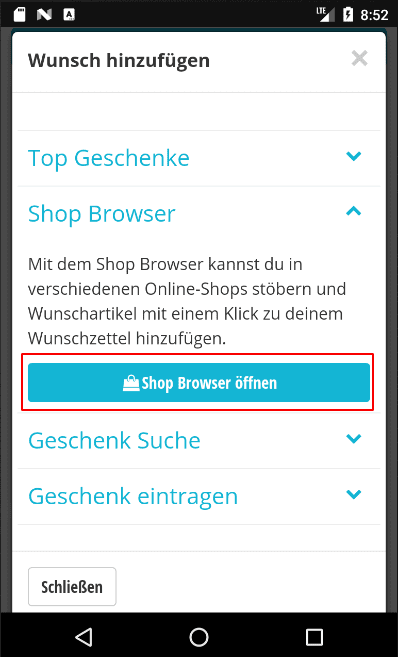
Click on "Add wish" in your wish list and then on "Open shop browser".
Step 2:
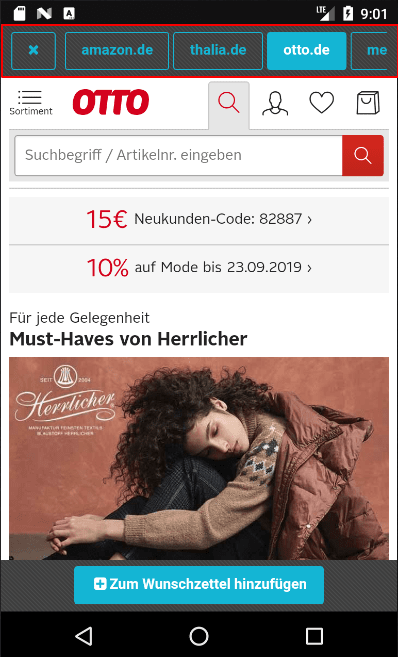
Select a store from the bar above.
Step 3:
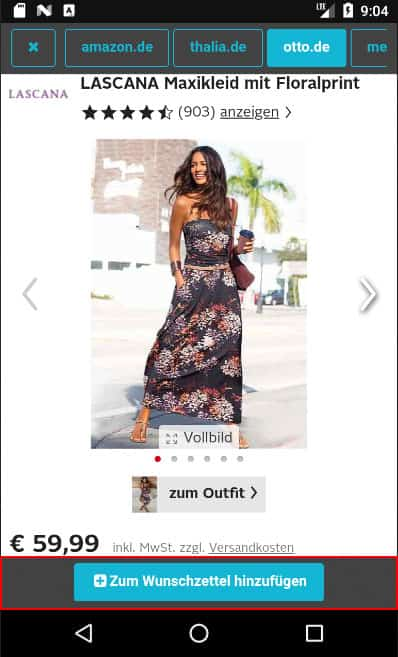
When you have found an item you want, click on the "Add to wish list" button below. Use the "Back" button on your phone to return to the Shop Browser.